

Custom Run Box (Resource Hacking)
Originally published on my old blog at cumps.be on July 24, 2004.
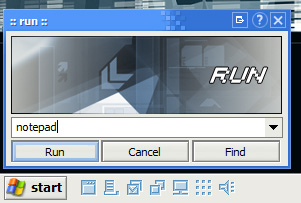
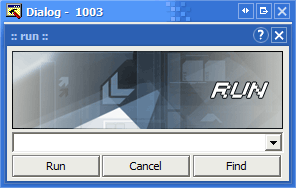
It’s time for a new article, but not about C# this time. I’ll tell you how to modify Windows, we’ll change the Run box and make it look like this:
First of all the disclaimer: This article is purely informational, you don’t have to do anything because I say so, everything you do is at your own risk and I am not responsible when anything goes wrong.
With that out of the way, grab the tools if you don’t have them yet:
We’ll begin by copying shell32.dll to a safe place.
Copy it two times, one which we’ll be editing, and one which is a backup.
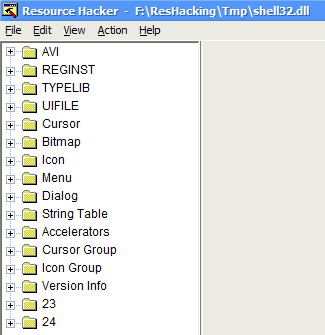
Open it in ResHacker and you’ll see a list on the left side showing all available resources.
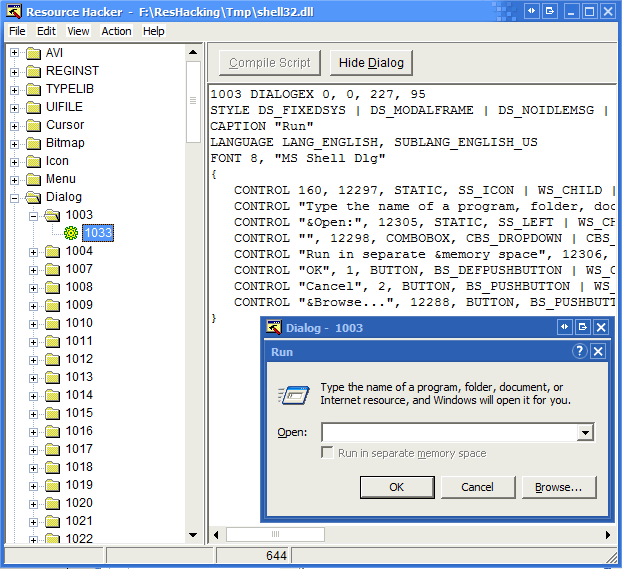
Now select the ‘Dialog’ resource, and look at 1003. You’ll notice it’s the Run box.
We’ll start by adding a bitmap to place on our Run box. Go to ‘Bitmap’ and select ‘Action’, ‘Add a new Resource’.
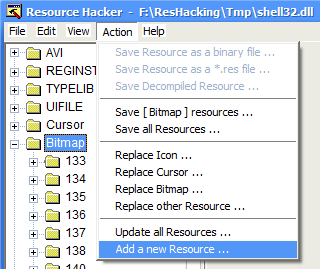
Here you select a bmp file and give it the name RUNGFX. You can get the bmp I used here: Runbox.bmp.
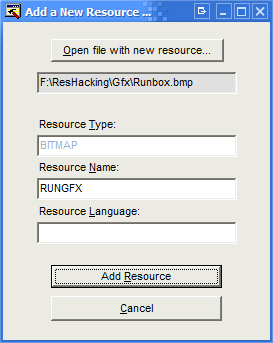
Press ‘Add Resource’ and now you can see it’s added.
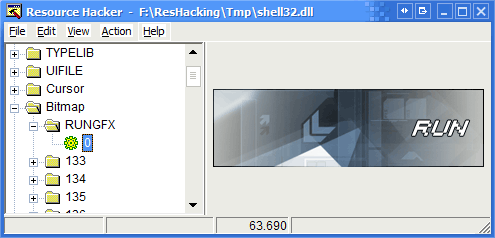
Now we’ll go back to the ‘Dialog’ 1003, 1033 and replace the existing script with this one:
1003 DIALOGEX 0, 0, 188, 83
STYLE DS_FIXEDSYS | DS_MODALFRAME | DS_NOIDLEMSG | DS_CONTEXTHELP | WS_POPUP | WS_CAPTION | WS_SYSMENU
CAPTION ":: run ::"
LANGUAGE LANG_ENGLISH, SUBLANG_ENGLISH_US
FONT 8, "MS SHELL DLG"
{
CONTROL "", 12298, COMBOBOX, CBS_DROPDOWN | CBS_AUTOHSCROLL | CBS_DISABLENOSCROLL | WS_CHILD | WS_VISIBLE | WS_VSCROLL | WS_TABSTOP, 3, 53, 181, 198
CONTROL "R", 12306, BUTTON, BS_AUTOCHECKBOX | WS_CHILD | WS_VISIBLE | WS_DISABLED | WS_TABSTOP, 21, 90, 1, 1
CONTROL "Run", 1, BUTTON, BS_PUSHBUTTON | WS_CHILD | WS_VISIBLE | WS_TABSTOP, 3, 67, 59, 14 , 0x00020000
CONTROL "Cancel", 2, BUTTON, BS_PUSHBUTTON | WS_CHILD | WS_VISIBLE | WS_TABSTOP, 63, 67, 59, 14 , 0x00020000
CONTROL "Find", 12288, BUTTON, BS_PUSHBUTTON | WS_CHILD | WS_VISIBLE | WS_TABSTOP, 124, 67, 59, 14 , 0x00020000
CONTROL "RUNGFX", 0, STATIC, SS_BITMAP | WS_CHILD | WS_VISIBLE | WS_GROUP, 3, 3, 181, 48
}
To make your life easier, and to be sure you don’t make a mistake due to your browser word wrapping the script, copy and paste it from this text file: runscript.txt.
When you have replaced it you press ‘Compile Script’.
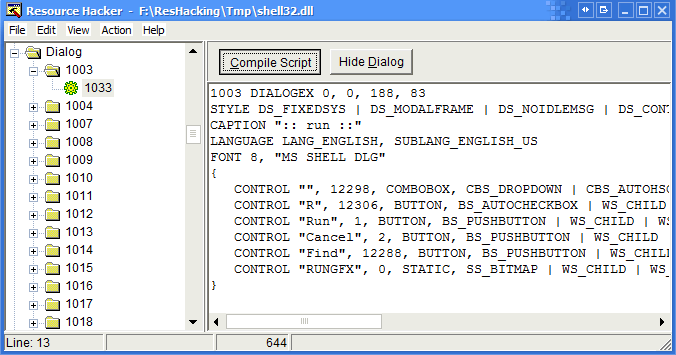
And now you’ll see the preview has changed to our new runbox!
Press Ctrl+S to save the modified dll.
The last thing we need to do is to use Replacer to replace our existing shell32.dll in SYSTEM32 with our new file. You can’t just copy it in there because Windows File Protection would replace it with a backup. Therefore we use Replacer, just follow the instructions Replacer shows and you’ll be fine. Replacer also prompts you to make a backup, make sure you make one, you never know what can go wrong.
When the file is replaced (Replacer replaces the file itself along with the one in dllcache) you have to reboot, and if everything went fine, you now have a new Run box! A really good looking one, different from everyone else.
Some notes: if you move the controls around, make sure to not place any above or behind the bitmap, it could cause problems. Also don’t include a bitmap bigger than your box. Make sure you leave a bit of space from the edges, when you put the bitmap against the border, it won’t show up.




You May Also Like

Tweaking the Run Box (Windows Resource Hacking)
Time for a new article, but not about C# this time.

ConvertToProperties Macro
The link to the C# property macro from Jan Tielens' .NET Magazine #5 article went missing in print; here it is.

Unable to Launch Notepad from Run or View HTML Source
Notepad wouldn't start from Run: a notepad.com in system32 ran first, because PATHEXT puts .COM before .EXE.