

SharePoint
Originally published on my old blog at cumps.be on February 22, 2005.
 For the Microsoft Student Council, I decided to write a small database application that would keep track of the users’ points. The council has access to a SharePoint site, so I decided to create a WebPart that would use existing user data and integrate nicely into the existing infrastructure.
The first thing I did was install the Web Part Templates for Visual Studio .NET on my machine. The installation required Microsoft.SharePoint.dll. So I decided to install Windows SharePoint Services first, which was freely available on the Microsoft Download website.
After I installed SharePoint, I discovered the SmartPart. This is a special WebPart, created by Jan Tielens and Fons Sonnemans, which allows you to encapsulate a regular ASP.NET User Control in a WebPart. This is a great solution because it gives you the productivity of using the designer and the power of accessing the SharePoint Object Model at the same time.
As this WebPart would be storing data, I had to start looking for where to store it. My first idea was to store it right in the SharePoint database, but there was almost no information on it and I was advised it wasn’t a good idea to put third-party data in that database. In the end I created two Custom Lists in SharePoint, which would act as database tables to store the data.
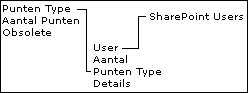
The next step was the creation of the User Control. To do this, references to Microsoft.SharePoint.dll and SmartPart.dll had to be added, the SmartPart, Microsoft.SharePoint and Microsoft.SharePoint.WebControls namespaces had to be imported and the IUserControl interface had to be implemented. This interface takes care of the link between your User Control and the SharePoint Web.
After this, it was possible to access everything of the SharePoint Object Model. For example, to fill a dropdown list with the available users, I used the following code:
private void FillUserList() {
  this.viewUserList.Items.Clear();

  SPUserCollection webUsers = this.SPWeb.Users;
  this.viewUserList.Items.Add(new ListItem("All", "-1"));
  foreach (SPUser webUser in webUsers) {
    this.viewUserList.Items.Add(new ListItem(
      Microsoft.SharePoint.Utilities.SPEncode.HtmlEncode(webUser.Name),
      webUser.LoginName));
  }
} /* FillUserList */
This dropdown was later used as a filter in the administrative part of the WebPart.
To retrieve the available types from the Custom List, I used the following piece:
private void FillTypeList() {
  this.typeList.Items.Clear();
  SPListItemCollection puntenTypes = this.SPWeb.Lists["PuntenList"].Items;
  foreach (SPListItem puntenType in puntenTypes) {
    if (!Convert.ToBoolean(puntenType["Obsolete"].ToString())) {
      this.typeList.Items.Add(new ListItem(
                                      puntenType["Punten Type"].ToString(),
                                      puntenType["Punten Type"].ToString()));
    }
  }
} /* FillTypeList */
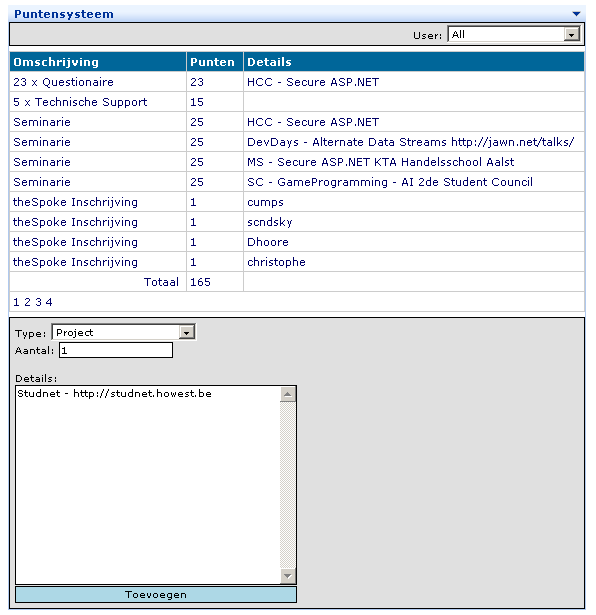
With small pieces of code like these, demonstrating the SharePoint Object Model, I created a small User Control, containing a DataGrid to display the items, some input fields to add new items and a dropdown list with users, to filter on when logged on as an administrator.



You May Also Like

NSurvey - Pie Charts
NSurvey only drew bar charts of the results and I needed pie charts too, so I added a pie chart report page.

NSurvey: MapPoint Integration
Combining NSurvey's Country List and the Belgian regions with MapPoint, to show survey results on a map per country and region.

NSurvey: Answer Types
Extending NSurvey with custom answer types: a school field that appears when Other is chosen, built on its publisher/subscriber model.