

Windows Services
Originally published on my old blog at cumps.be on April 3, 2005.
Normally, a Windows service is used to provide a system service to other applications, such as an antivirus service for example. The best practice for a business application providing a service would be to create a Windows Forms application, which runs on the desktop of a server. A user account would be used to log in to the server, start the application, and lock the server. At that point the application would provide a service to other systems. This is because a business application normally isn’t part of the operating system infrastructure, while all Windows services are.
For this project however, to try out technologies, Windows Services were used. And, I have to admit, after having tried it out, it brings along more problems than it solves. As you have to learn from experience, this was a valuable lesson for future similar projects.
To create a new Windows Service, a template can be used from Visual Studio when creating a new project. This provides a starting class, with the two most important methods, OnStart and OnStop. When you want to start or stop the service from Windows, these methods will be called.
However, these methods had to finish within a reasonable time, 30 seconds. Otherwise the service manager would give an error. The initialization of a service can take longer. To solve this, a Timer was added to the project, which had an interval of 10 milliseconds, was disabled and had a method listening for its Elapsed event. In the OnStart method, the timer was simply started, and nothing more. This caused the service to start immediately, while it had all the time it needed to perform its initialization inside the Elapsed event.
protected override void OnStart(string[] args) {
  this.serviceTimer.Enabled = true;
}
After this, the Windows Service could be coded just like you would code anything else. When everything was done, it was time to add an installer to install the service into the system. To do this, a new class had to be added to the project which had a RunInstaller attribute set to true, inherited from Installer and included the following using statements:
using System;
using System.ComponentModel;
using System.ServiceProcess;
using System.Configuration.Install;

namespace MediaService.Player {
  [RunInstaller(true)]
  public class PlayerServiceInstaller: Installer {
The installer itself had to be configured in the constructor, with the following code:
private ServiceInstaller PlayerInstaller;
private ServiceProcessInstaller PlayerProcessInstaller;

public PlayerServiceInstaller() {
  this.PlayerInstaller = new ServiceInstaller();
  this.PlayerInstaller.StartType = ServiceStartMode.Manual;
  this.PlayerInstaller.ServiceName = "MediaServicePlayer";
  this.PlayerInstaller.DisplayName = "MediaService - Media Player";
  this.Installers.Add(this.PlayerInstaller);

  this.PlayerProcessInstaller = new ServiceProcessInstaller();
  this.PlayerProcessInstaller.Account = ServiceAccount.User;
  this.Installers.Add(this.PlayerProcessInstaller);
} /* PlayerServiceInstaller */
At this point, the Windows Service was ready to be installed. To do this, the installutil utility had to be used. This tool is available from the Visual Studio .NET 2003 Command Prompt and takes the service executable as a parameter.
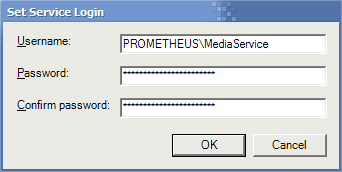 During the installation, a log was generated, and a dialog box appeared for configuring the account the service had to run under. After this, the service was successfully installed and accessible from MMC.
Once the service was running, Remoting was used to control it.



You May Also Like

Remoting Client-Side
The consumer side of .NET Remoting: an ASP.NET web service that gets the controller object from a Windows Service on the same machine.

Remoting Server-Side
Controlling a Windows Service with .NET Remoting instead of ServiceController, which could only send integers and got nothing back.

eID
My feasibility study on the Belgian eID card: what the technology is, what you can do with it, and how to implement it.