

Sync FLAC Library with iPod
Originally published on my old blog at cumps.be on August 11, 2007.
Yesterday I explained how you could manage your iPod through Windows Explorer. Having this ability opens up more powerful ways of managing your iPod. One of these ways for example is the ability to automatically sync your master archive stored on your computer, with your iPod. In my case it’s stored in FLAC format to retain all its quality, since FLAC is a lossless format.
Armed with TagLib#, LAME, FLAC and a nice Scan directories using recursion class to search through a directory for files, I slapped together a small synchronization application for myself.
On my iPod I have the following batch file, EncodeLibrary.bat, stored:
@ECHO OFF
ECHO Running: '%~d0\LibrarySync.exe %~d0\ C:\Media\Music %~d0\Music'
ECHO Encodes to MP3 with: -V 4 --vbr-new
%~d0\LibrarySync.exe %~d0\ C:\Media\Music %~d0\Music
ECHO Done.
This file simply calls my utility, LibrarySync.exe, and passes in the drive it is running on (%~d0), the archive and the target directory. In my application I then simply scan for all available FLAC files, through a wildcard search, in the archive and trigger an action whenever a file is found.
static void Main(string[] args)
{
    /* Note to blog reader: These used to be constants, never properly refactored it since it was a quick and dirty personal app. */
    DRIVE = args[0];
    FROMDIR = args[1];
    TODIR = args[2];

    ScanDirectory scanDirectory = new ScanDirectory();

    scanDirectory.FileEvent += new ScanDirectory.FileEventHandler(scanDirectory_FileEvent);
    scanDirectory.SearchPattern = "*.flac";

    scanDirectory.WalkDirectory(FROMDIR);
}
Whenever a FLAC file is found, I check if the target MP3 already exists, and in case it doesn’t exist yet, I call a Convert.bat file. I’ve chosen to use an external batch file to handle the encoding, this way I can simply open it up in a text editor and change the encoding quality or the paths to the encoder.
After encoding the file, I take the metadata from the original FLAC file and place it in the target MP3 ID3v1 and ID3v2 tags. This way my iPod can read out the file details and organize it easily in its catalog.
static void scanDirectory_FileEvent(object sender, FileEventArgs e)
{
    string from = e.Info.FullName;
    string to = TODIR + e.Info.FullName.Remove(0, FROMDIR.Length).Replace(".flac", ".mp3");
    string toDir = TODIR + e.Info.DirectoryName.Remove(0, FROMDIR.Length);

    if (!IO.File.Exists(to))
    {
        if (!IO.Directory.Exists(toDir))
        {
            IO.Directory.CreateDirectory(toDir);
        }

        Console.WriteLine("Writing " + to);

        Process convertFile = new Process();
        convertFile.StartInfo.UseShellExecute = false;
        convertFile.StartInfo.RedirectStandardOutput = false;

        convertFile.StartInfo.FileName = DRIVE + "Convert.bat";
        convertFile.StartInfo.Arguments = "\"" + from + "\" \"" + to + "\"";
        convertFile.Start();

        convertFile.WaitForExit();

        Flac.File flacFile = new Flac.File(from);
        TagLib.Tag flacTag = flacFile.GetTag(TagLib.TagTypes.FlacMetadata, false);

        TagLib.File mp3File = TagLib.File.Create(to);
        MP3.Tag mp3Tag = mp3File.GetTag(TagLib.TagTypes.Id3v2) as TagLib.Id3v2.Tag;
        MP3Old.Tag mp3OldTag = mp3File.GetTag(TagLib.TagTypes.Id3v1) as TagLib.Id3v1.Tag;

        if (flacTag.Album != null) {            mp3Tag.Album = flacTag.Album;                                       }
        if (flacTag.FirstPerformer != null) {   mp3Tag.Performers = new string [] { flacTag.FirstPerformer };       }
        if (flacTag.Title != null) {            mp3Tag.Title = flacTag.Title;                                       }
        if (flacTag.Year != 0) {                mp3Tag.Year = flacTag.Year;                                         }
        if (flacTag.FirstGenre != null) {       mp3Tag.Genres = new string [] { flacTag.FirstGenre };               }
        if (flacTag.Track != 0) {               mp3Tag.Track = flacTag.Track;                                       }

        if (flacTag.Album != null) {            mp3OldTag.Album = flacTag.Album;                                    }
        if (flacTag.FirstPerformer != null) {   mp3OldTag.Performers = new string [] { flacTag.FirstPerformer };    }
        if (flacTag.Title != null) {            mp3OldTag.Title = flacTag.Title;                                    }
        if (flacTag.Year != 0) {                mp3OldTag.Year = flacTag.Year;                                      }
        if (flacTag.FirstGenre != null) {       mp3OldTag.Genres = new string [] { flacTag.FirstGenre };            }
        if (flacTag.Track != 0) {               mp3OldTag.Track = flacTag.Track;                                    }

        mp3File.Save();

        Console.WriteLine();
    }
}
The content of my Convert.bat file looks like this:
@ECHO OFF
"%~d0\Tools\FLAC\flac.exe" --decode --stdout --silent %1 | "%~d0\Tools\LAME\latest\lame.exe" -V 4 --vbr-new - %2
It simply encodes the FLAC file to a VBR MP3 with a target bitrate of 165kbps.
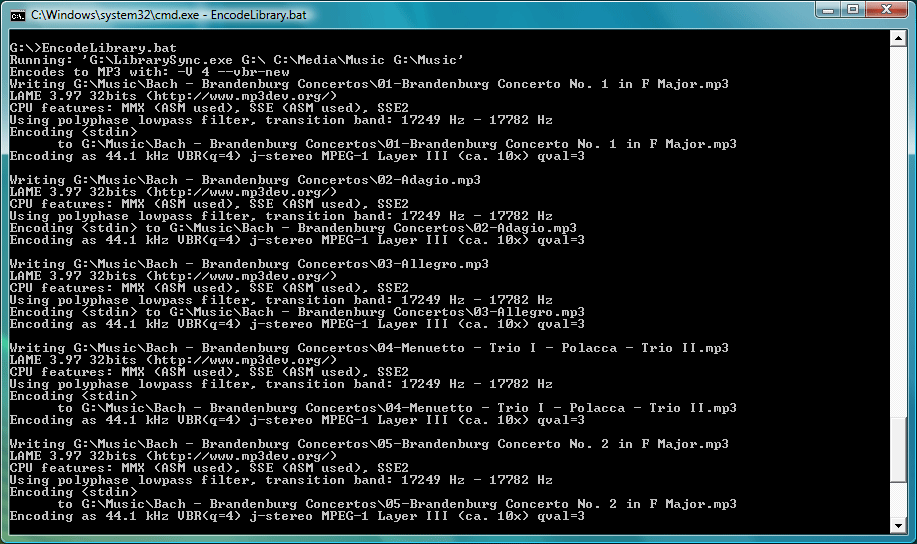
All said and done, this is what the tool looks like in action:
When I connect my iPod, I usually follow these steps from now on:
- Run reTune to manage my songs in Windows Explorer.
- Run
EncodeLibraryto encode possible missing songs. - Run reTune to organize them back into my iPod.
- Disconnect and listen to music.
I created a small zip file for anyone who would like to set something like this up as well. To use it, simply follow these steps:
- Extract the zip file to the root of your iPod.
- Edit
EncodeLibrary.batto point to your master archive, and the target folder. - Get the FLAC and LAME files and place them in a folder called
Tools. Look atConvert.batto determine the exact paths. - Run
EncodeLibrary.batfrom a command prompt, and with a bit of luck it’ll work for you.



You May Also Like

Manage iPod through Windows Explorer
reTune lives on your iPod and lets you manage its music through Windows Explorer, no iTunes needed.

Listen to High Quality Music
FLAC stores music without any loss of quality, at a fraction of the size of wave files. Why it's the right format for an audiophile.

Visual Studio 2008 and PHP Coloring
Getting PHP syntax coloring in Visual Studio 2008 by treating .php files as C++ with a registry file and a custom usertype.dat.