

GPG in Outlook 2007 - OutlookGnuPG
Originally published on my old blog at cumps.be on April 15, 2009.
A long time ago, I used PGP for signing my email, but I stopped using it. Probably because I didn’t quite get the concept yet, but that has changed now. Today I switched to GPG for signing my mail and files, with all the required files running from my memory stick. One thing bothered me, however: there was no Outlook 2007 support at all. There are some plugins around for older Outlook versions, but that didn’t quite work out.
So I decided to develop my own. After a few weeks of development and testing, it’s done and ready to be set free upon the world. Let’s have a look at the functionality and how to set it up and use it.
The ClickOnce installer described below is no longer available. The source code and the version that others continued on GitHub are linked in the updates at the end of this post.
Prerequisites
First of all, a working copy of GPG is required, so visit the GnuPG download page, scroll down and download the command line Windows version. Install this somewhere on your machine and remember the path where you installed it.
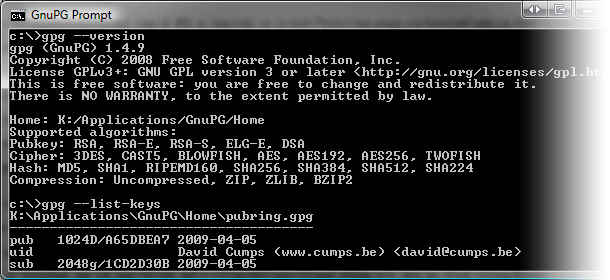
If everything has gone correctly, you can now open a command prompt and type gpg --version and gpg --list-keys to see the version and your keys (which would be empty if you’re using it for the first time).
Visit the Getting Started section of the GnuPG handbook to generate your own key if this is your first encounter.
OutlookGnuPG
There are two main areas in the plugin: functionality for sending a mail (sign and encrypt) and for reading a mail (verify and decrypt). At the moment only plain text emails are supported. No HTML mail or attachments, that’s for a future version :)
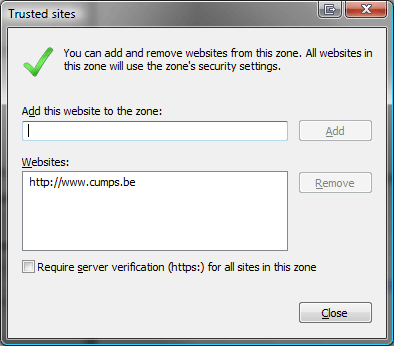
To install the add-in, start by adding www.cumps.be to your Trusted Sites (you can do this in Internet Explorer - Tools - Internet Options - Security - Trusted Sites - Sites).
Download the OutlookGnuPG project on GitHub and run the installer.
This will give you a prompt asking you if everything is fine. Go ahead and install it. You might have to close Outlook before installing.
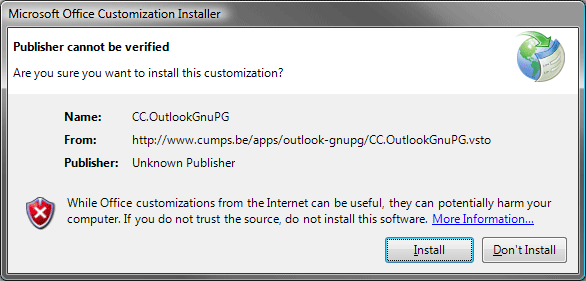
When the add-in is installed, you can open Outlook and a Settings dialog will show up. Click Browse… and select the directory where the gpg.exe you installed earlier is located. On the second tab you can select the default key you want to use to sign your mails. You will still have a choice to change your key when sending the actual mail.
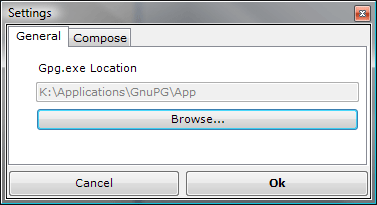
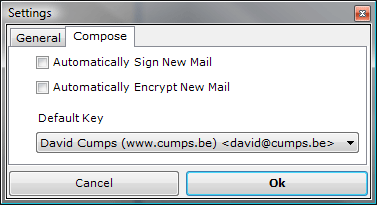
Click Ok when done. At this point you can use your Outlook as before, since we haven’t checked any auto-sign or auto-encrypt functionality.
Sending mail
When you compose a new mail, you will notice the Message ribbon has a new group on it, called OutlookGnuPG, with a Sign and Encrypt toggle button.
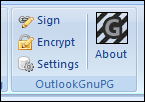
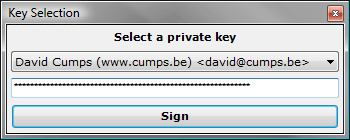
Sending out a signed mail is as simple as turning on the Sign button, typing your mail and pressing Send. It will prompt you to select the private key you want to use to sign the mail, and your passphrase.
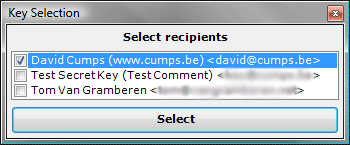
Creating an encrypted mail follows the same logic: toggle the Encrypt button and send your mail. You will have to select the intended recipients (multiple are possible) and it will encrypt the mail so only these people will be able to decrypt it.
To be absolutely safe, you can toggle both the Sign and Encrypt buttons to send out an encrypted signed message.
Reading mail
Reading mail can be done in two ways in Outlook, either by opening the mail item, or by using the preview pane, so there are two ways to verify or decrypt a mail too.
The first works the same way as sending. When you open an existing mail, you will notice a new ribbon group, OutlookGnuPG, with a Verify and Decrypt button.
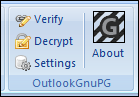
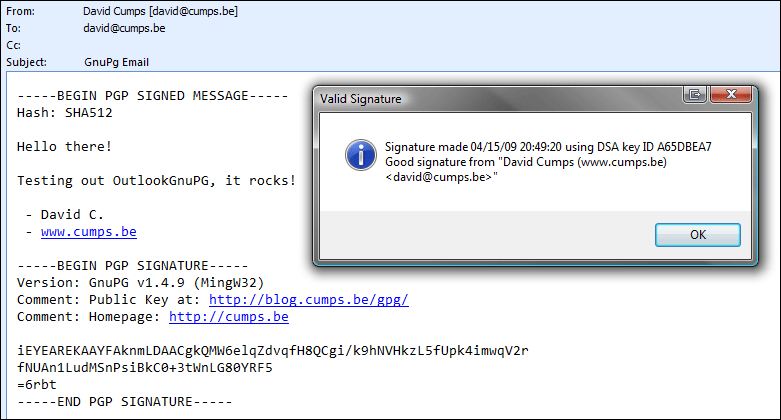
Simply click Verify to check if a signed mail is valid or not. A message box will inform you of the status.
Likewise, click Decrypt to decrypt an encrypted email. This will ask you for your private key to decrypt the message with. The message will be decrypted, and the decrypted content will be placed in the message. If the message was also signed, a message box will inform you of the status.
The second way is through the preview window. A new command bar will have appeared on the preview window, with a Verify and Decrypt button, which work exactly the same as the previous buttons.

Credits
OutlookGnuPG is free, so it’s only fair to credit the resources it uses.
- Silk Icon Set by Mark James
- OpenPGP wrapper by Starksoft
- Clipboard Wrapper by Alessio Deiana
Update: the source
Since I won’t have the time to maintain this, I’m releasing the source: cc.outlookgnupg-1.0.8.0.zip
Update: continued on GitHub
Philippe Teuwen and Thierry Walrant have taken it upon themselves to improve the code I posted above and made it available on GitHub, using GPLv3 as a license. Check it out at: github.com/twalrant/OutlookGnuPG
More about OutlookGnuPG on my open-source page.



You May Also Like

Obfuscation - Making Reverse Engineering Harder
A strong name doesn't stop anyone from decompiling your .NET assemblies. Obfuscation goes a long way towards keeping your code safe.

Code Signing as Reverse Engineering Protection
Signing a .NET assembly stops casual tampering, but stripping the strong name defeats it; why you should still sign your code.

Reverse Engineering with Reflector and Reflexil
Cracking a small password check in a .NET assembly by flipping one IL branch with Reflector and the Reflexil add-in.